A practical guide for small businesses
Before you print your QR menu: a table-card checklist for cafés and restaurants
Prepare the menu, check the link and test a printed sample before you put QR cards on every table.
For owners and staff of small cafés, restaurants and food businesses preparing a QR menu for tables, a counter or a window.
Open the sample restaurant menu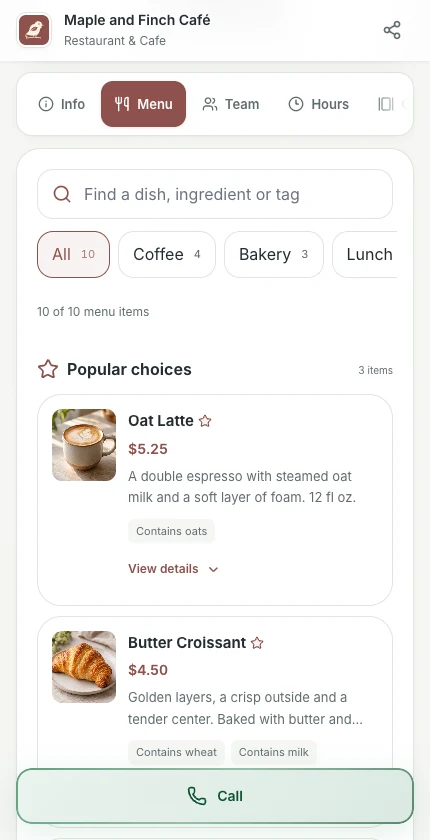
Browse the café’s menu and see what guests can choose before ordering.
A QR code is only the entrance to your menu. A guest still needs the right page to open, readable item details and current prices. Before ordering a batch of table cards, work through the same journey your guest will take: scan the code, find an item and understand what is available. This guide uses real Piriyo screens with example business content to show where to prepare and check each part.
You will leave with a checked menu destination, a file ready for a trial print and a short checklist you can reuse when the menu changes.
Start with the page the QR code opens
Open the QR code and sharing page in your own Piriyo workspace. Follow the displayed link and check that it leads to your business and its published menu. Use a browser where you are not signed in as the owner: an editing screen or an owner preview is not the guest experience. If the public menu is missing, finish publishing it before printing cards.
Keep the QR destination separate from the menu content. Updating an item or its price on the existing profile does not require a different QR code just because that content changed. Replacing the destination, moving to another service or changing the address printed below the code deserves a new check. The QR codes shown in this article are illustrative examples; download the code from your own business workspace.
- The scanned page belongs to the right business and its menu is public.
- The file comes from your own workspace, not a screenshot or another business’s card.
Make the menu useful before you make the card attractive
Arrange categories in the order guests browse them: for example, coffee, cold drinks and food. Use names that distinguish similar items, and say what a displayed price refers to. If two drink sizes have different prices, the wording should make the choice clear. Review photos, descriptions and published ingredient details against what your team actually serves.
Now inspect the customer view rather than only the editor. Look for empty sections, missing items, unclear currency and outdated prices. If an item is not available, update what guests can see before service. Check your current plan’s publishing limits when an expected item is not visible. Changing the interface language does not translate the menu content you entered or choose your business currency.
- Item names, portions or options, prices and currency agree with the current menu.
- The customer view contains the items you intend to publish, in a useful order.
Download the code and choose the right print layout
On the QR code and sharing page, save any design changes before downloading. Use the SVG option when a designer or print shop needs a vector QR file. PNG is available for a document or image workflow. Use the downloaded file rather than a screenshot of the preview, and do not stretch it into a different shape or place text over the code.
For a ready-made sign, the print kit offers a poster layout or a sheet of counter cards, with US Letter and A4 paper choices. Choose the paper loaded in your printer, then set the sign language and the menu message for your guests. The sign language is separate from your dashboard language. Review the preview and use PDF, PNG or Print. In the print dialog, keep the scale at 100% and turn off browser headers and footers, as the print kit instructs.
- The saved design, paper size, sign language and message are the ones you want to distribute.
- The downloaded code is intact and the preview has no clipped business name or address.
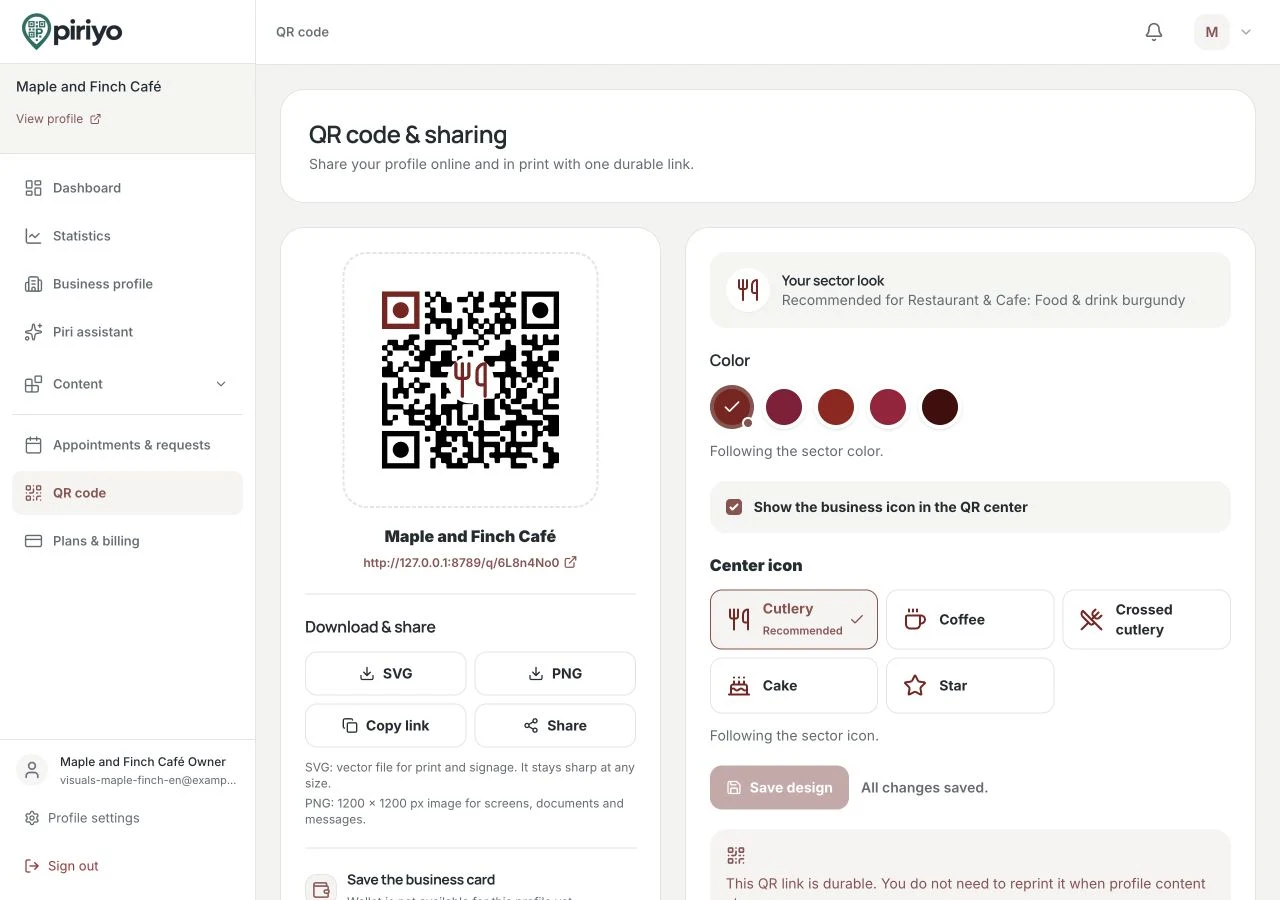
Use the QR preview and sharing controls to prepare access to your published menu. The QR code in this example is for illustration; share the code from your own business workspace.
Test the guest journey on a phone
Open the menu without an owner login and use a phone’s camera to scan the code. Do not stop when the camera recognizes it: open the link, reach the menu, browse a category and read an item’s price and description. Ask someone who did not build the menu to find a specific item. Their hesitation can reveal an unclear category name or an unnecessary step.
Try the journey with your business Wi-Fi turned off so you can see how it behaves on a mobile connection. If you also expect guests to use Wi-Fi, check that separately. Review readable text, image loading and the contact options you publish. The QR menu displays information; it does not submit a table order or collect a restaurant payment. Make that distinction clear to staff and guests.
- A guest can open and browse the menu without using the owner account.
- Prices and important descriptions are readable on the phones you tested.
Approve one physical sample before the full batch
Print one sample using the paper, finish and holder you plan to use. Put it where a guest would find it: on a table, at the counter or in the window. Try scanning from a comfortable position in the light available there. Reflections, folds, wear or a holder covering part of the code can make a card that looked good on screen awkward to use.
Test that sample with different available phones before approving more copies. Keep the complete code and its surrounding clear space visible. If scanning is unreliable, revise the layout or placement and print another sample. There is no universal size or scanning distance established by this guide. These are checks for your own printed materials, not a claim that we have tested your printer, paper or restaurant lighting.
- The actual sample scans in its intended holder and location on more than one available phone.
- Nothing crops, covers or distorts the code, and the card is easy to find.
Give guests a way to open the menu without scanning
Place a readable business address below the code and check that typing it opens the same published menu destination. A short instruction such as “Scan to see our menu” tells guests what will happen. Use the language your guests read; for an Arabic sign, inspect the right-to-left layout and the address separately so the address is still easy to recognize and type.
Keep a practical alternative for someone without a suitable phone or connection, such as a current printed menu or staff assistance. Tell the team where that alternative is kept and who updates it. A QR card is useful when it removes friction; it should not leave a guest unable to check the menu. Review the alternative whenever you change the digital prices.
- The printed address is readable and has been typed into a browser successfully.
- Staff can provide an up-to-date alternative when a guest cannot scan.
Make a quick check part of menu updates
When a price, description or available item changes, edit the menu in your workspace and open the customer view again. Scan a card that is already in use rather than checking only a newly downloaded file. This confirms that the guest’s route still reaches the current information. Assign the check to someone on the team so menu edits and the printed alternative stay in step.
A content update on the same destination is different from a damaged card or a changed link. Replace worn cards and review all shared materials if you change where they lead. Before service, check one card and the day’s important menu changes. Keep the checklist below for the next print run; a small, repeatable check is more useful than assuming the first successful scan covers every future change.
- A card already in use opens the updated menu after a change.
- Someone owns the routine check and keeps the non-QR alternative current.
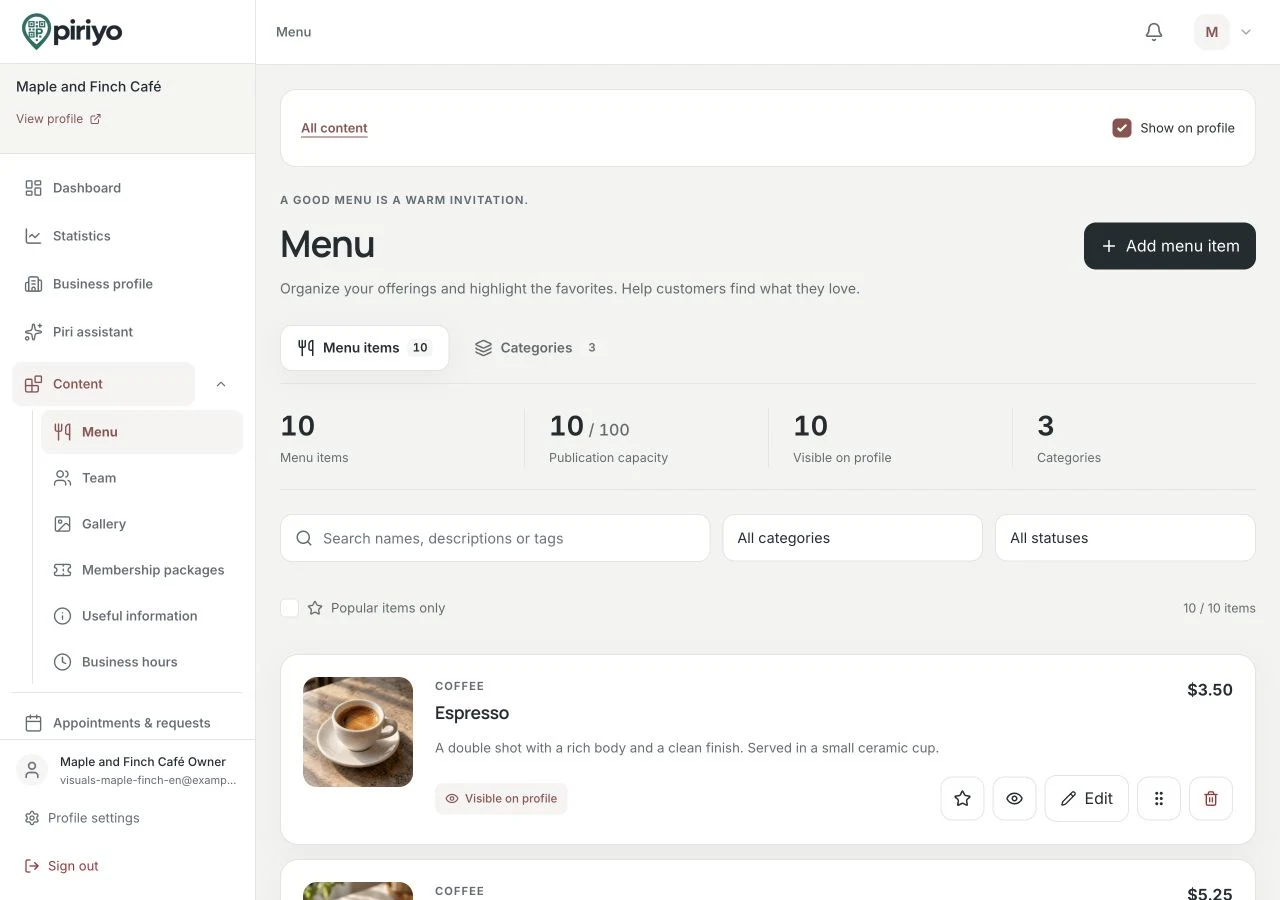
Organize items into categories and edit their details from your business workspace.
Before you print your QR menu: a table-card checklist for cafés and restaurants
Your pre-print checklist
Keep this list with the person preparing the menu and the person placing the cards. Check the actual printed sample before approving the rest.
Opens your browser’s print dialog for the checklist. You can also save it as a PDF if your browser supports it.
Piriyo ·
Ready to prepare your own menu?
Use the QR menu walkthrough to see the product flow, compare current plan limits and prepare your business profile. Keep this checklist for the first print run and each menu update.