
The right service and person
Present the services you accept and, when your setup includes staff selection, let customers choose an available team member.
Put your business information to work
Give customers a clear way to request an appointment. Piriyo shows times based on your configured schedule and existing appointments, collects the details you need and keeps the request ready for your review.
For salons, independent professionals and service businesses that want online time selection while keeping control of appointment confirmation.
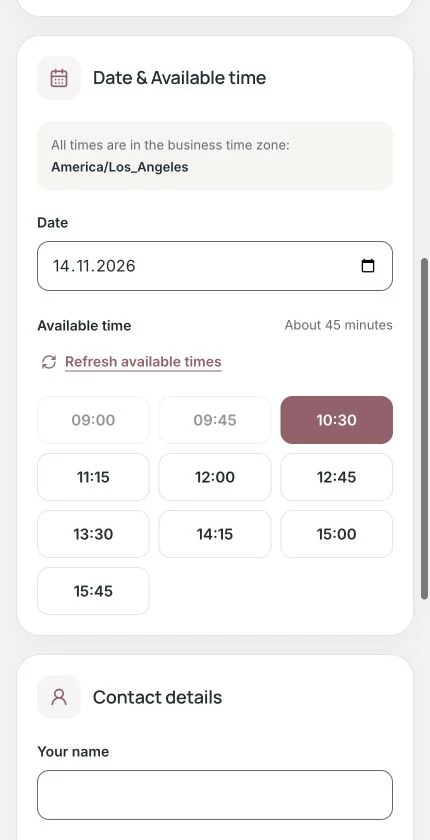
Customers choose from the times offered by your schedule and send their request for your review.
Present the services you accept and, when your setup includes staff selection, let customers choose an available team member.
Offer times based on working hours, service duration and appointment capacity. Pending and confirmed appointments both count when Piriyo calculates availability.
See incoming requests in your workspace with the selected time and customer details. Review the request, manage its status and confirm the arrangements with the customer.
Inside your workspace
Set your services and schedule, then manage incoming requests in your workspace. A pending request counts toward availability; your business still decides whether to confirm it.
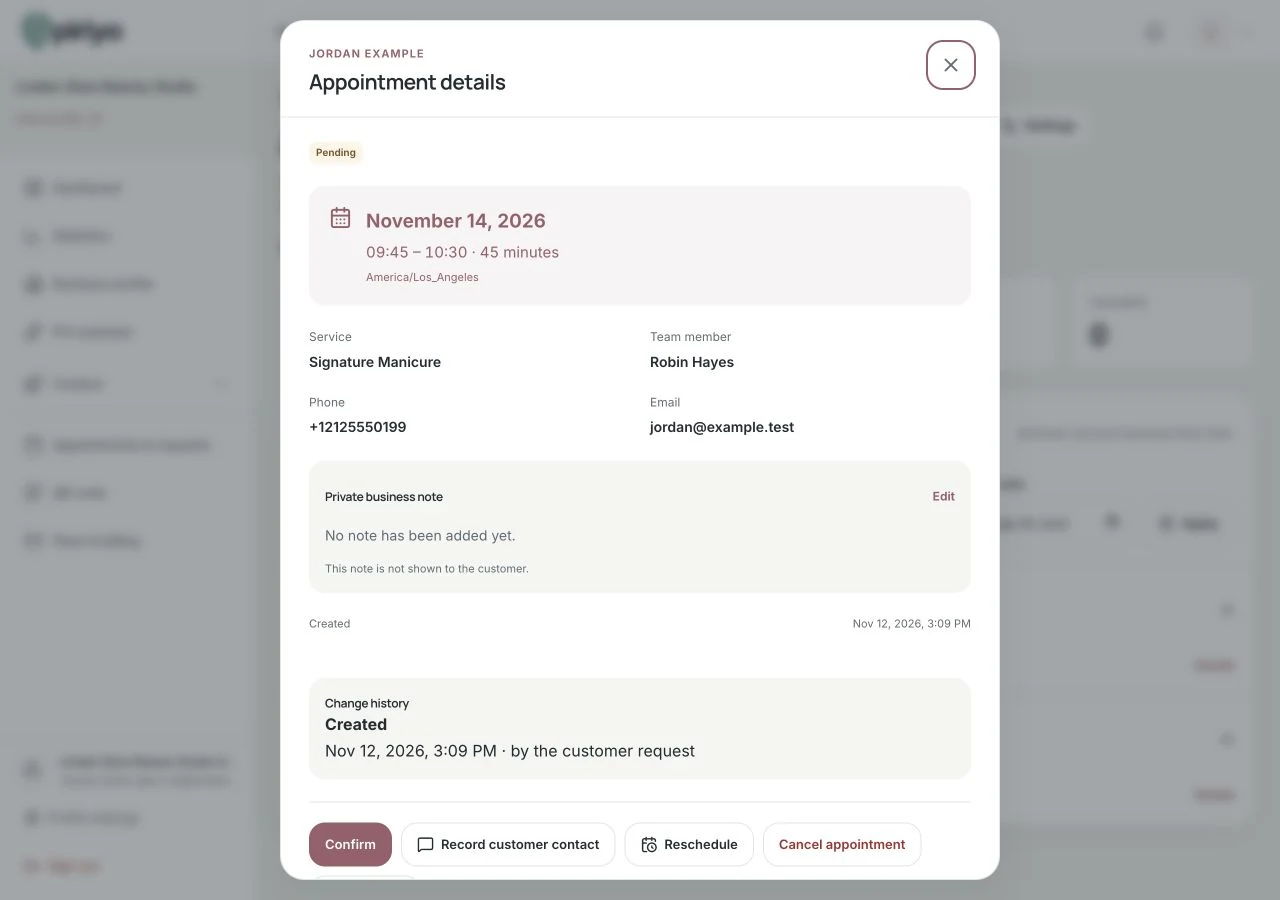
Review requests and their status in your workspace. Submitting a request is not automatic confirmation.
Enter clear services, relevant durations and working hours. Check your request settings and any staff or capacity rules before sharing the form.
Preview service selection and the available times on a phone. Check the displayed business timezone and make sure the form matches the appointments you offer.
A submitted request starts as pending and counts toward availability. Review it in your workspace and update its status; contact the customer to clarify details where needed.
A customer chooses a consultation and an available time, then sends contact details. The pending request counts toward the salon’s capacity while the team reviews it. The salon confirms the appointment separately.
Submitting a request does not automatically confirm a booking. Pending requests count toward available capacity. Availability is based on your Piriyo schedule and appointments; this workflow does not include external calendar synchronization or appointment payments.
No. The request starts as pending. It counts toward the available capacity for the selected time, but your business still reviews and confirms the appointment.
Piriyo uses your configured working hours, duration and capacity, together with pending and confirmed appointments. Staff and service rules apply when they are part of your setup.
You can keep your separate business processes, but this workflow does not synchronize an external calendar or collect appointment payments. Keep any separate records consistent and check your plan’s request limits.
Choose the information your business needs to share, prepare your profile and check the plan that fits your use.