A menu organized by category
Group items into sections that match how customers browse, such as drinks, main dishes or desserts. Give each item a useful name and description.
Put your business information to work
Guests scan the code at the table and open your menu on their phone. When you update an item or its price, the same code opens the updated menu.
For restaurants and cafés that manage their own menus.
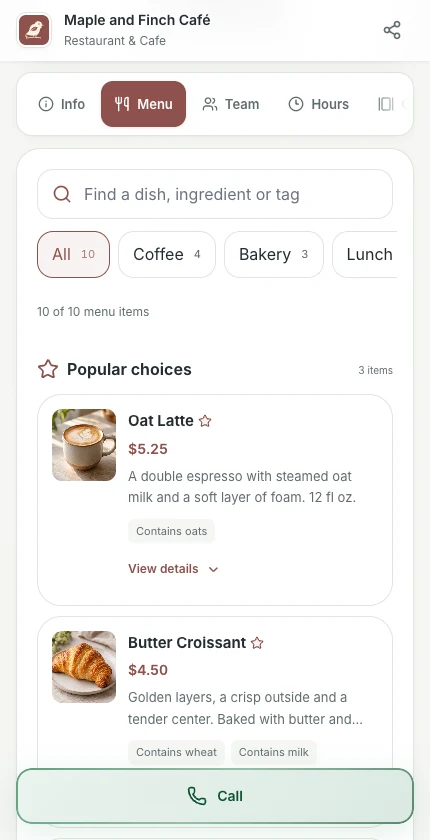
Browse the café’s menu and see what guests can choose before ordering.
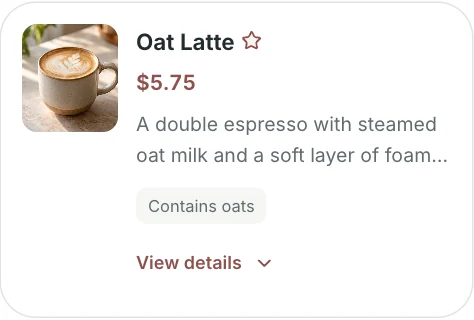
In this US café example, the owner changes the oat latte from USD 5.25 to USD 5.75. Guests see the new price the next time they open the menu. The printed table card stays in place.

Group items into sections that match how customers browse, such as drinks, main dishes or desserts. Give each item a useful name and description.
Show prices in the currency you select, add suitable images and review availability details. Keep descriptions accurate when ingredients or serving options change.
Update the menu on the existing profile when your offer changes. A QR code that points to the unchanged profile address can continue to open that profile.
Inside your workspace
Manage your menu items in one workspace. Update the details, check the customer view and keep sharing the same profile address.
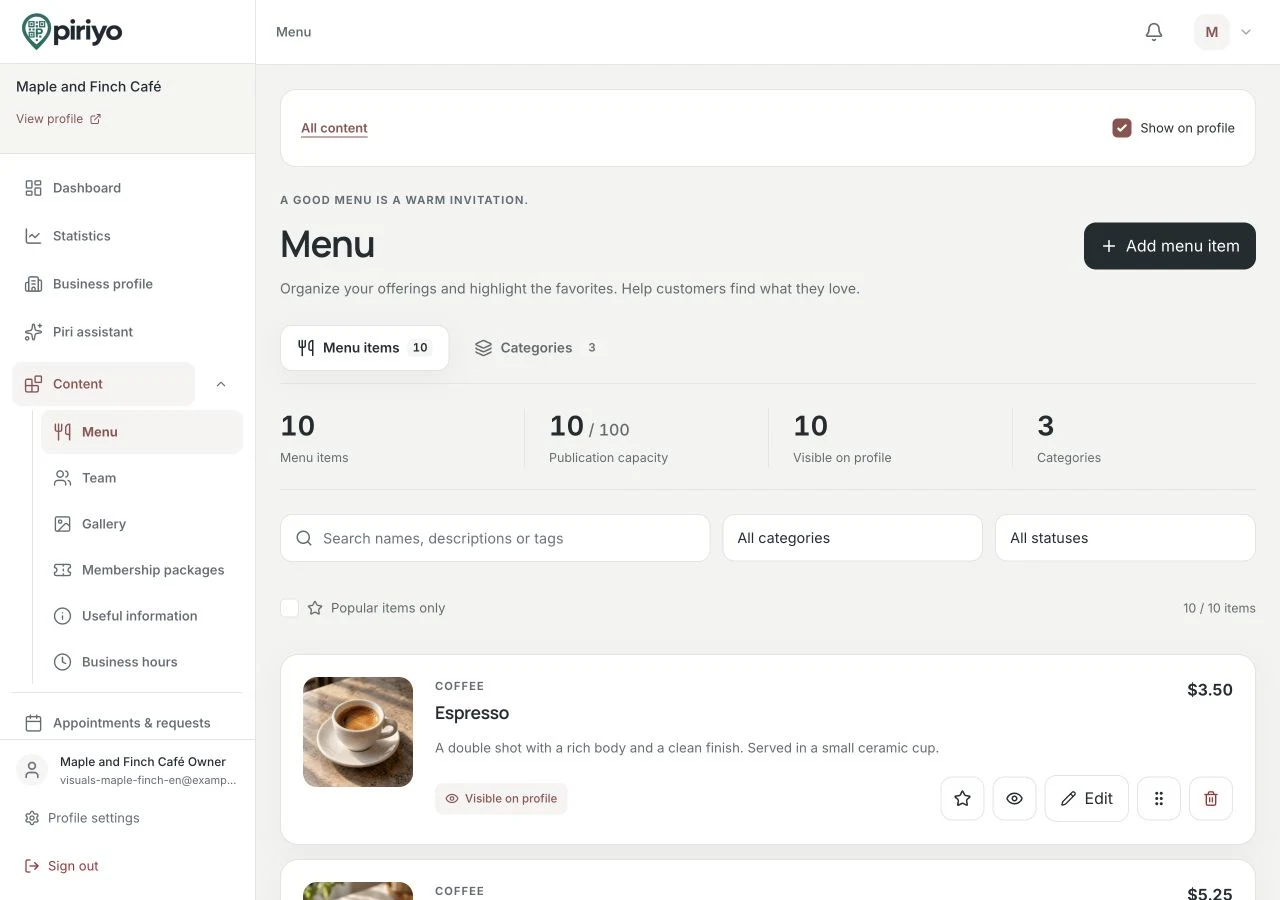
Organize items into categories and edit their details from your business workspace.
Add the menu module to your profile and create the categories you need. Start with the sections your customers use most often.
Enter names, descriptions, prices and relevant images. Check the published wording carefully, including any ingredient information you choose to provide.
Publish the prepared profile and scan its QR code with a phone. Check readability, prices and contact information before printing or distributing the code.
A café can organize hot drinks, cold drinks and pastries into separate sections. When the pastry selection changes, the owner updates the menu items and checks the customer view before service.
This workflow publishes a menu. It does not take table orders, process restaurant payments or connect a point-of-sale system. Menu text is the content you enter; it is not automatically translated.
Inside your workspace
Preview your profile’s QR code, copy the link or download the code. Open the destination on a phone before placing it on a table card or counter.
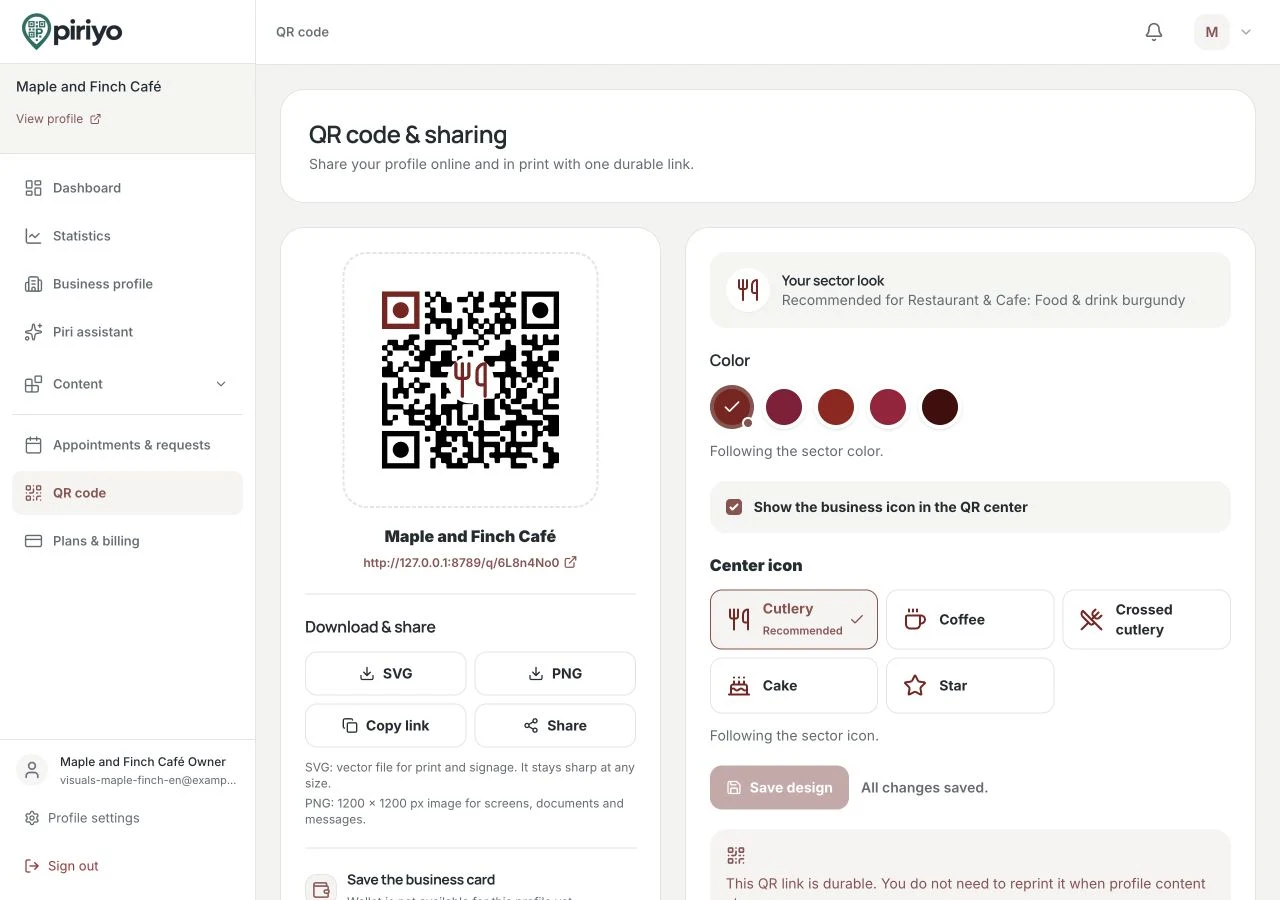
Use the QR preview and sharing controls to prepare access to your published menu. The QR code in this example is for illustration; share the code from your own business workspace.
You can update the price on the existing profile. If the QR code still points to that same profile address, the address does not need to change just because the menu content changes.
The menu presents your items and prices. It does not confirm an order or collect a restaurant payment. Customers can use any contact options you have published separately.
Yes. Organize the menu into categories and add images to suitable items. Review your plan limits and preview the result on a phone before sharing it.
Choose the information your business needs to share, prepare your profile and check the plan that fits your use.